Knowing how to trim video clips online without quality loss is an essential skill for social media managers and video editors. Traditional video editing programs often trigger lengthy re-encoding cycles that degrade video clarity. Here is how to trim and slice video segments cleanly in your web browser.
The Power of Stream-Copy Video Trimming
When you trim video clips online using stream-copy algorithms, the video frames between your designated start and end timestamps are sliced without re-compressing pixels. This means zero loss of video fidelity, identical color grading, and near-instantaneous export speeds.
Try our Online Video Trimmer to easily adjust clips for Instagram Reels, YouTube Shorts, or TikTok.
Step-by-Step Instructions: Trimming Clips
- Select Video to Edit: Open our Video Trimmer Tool and upload or link your video file.
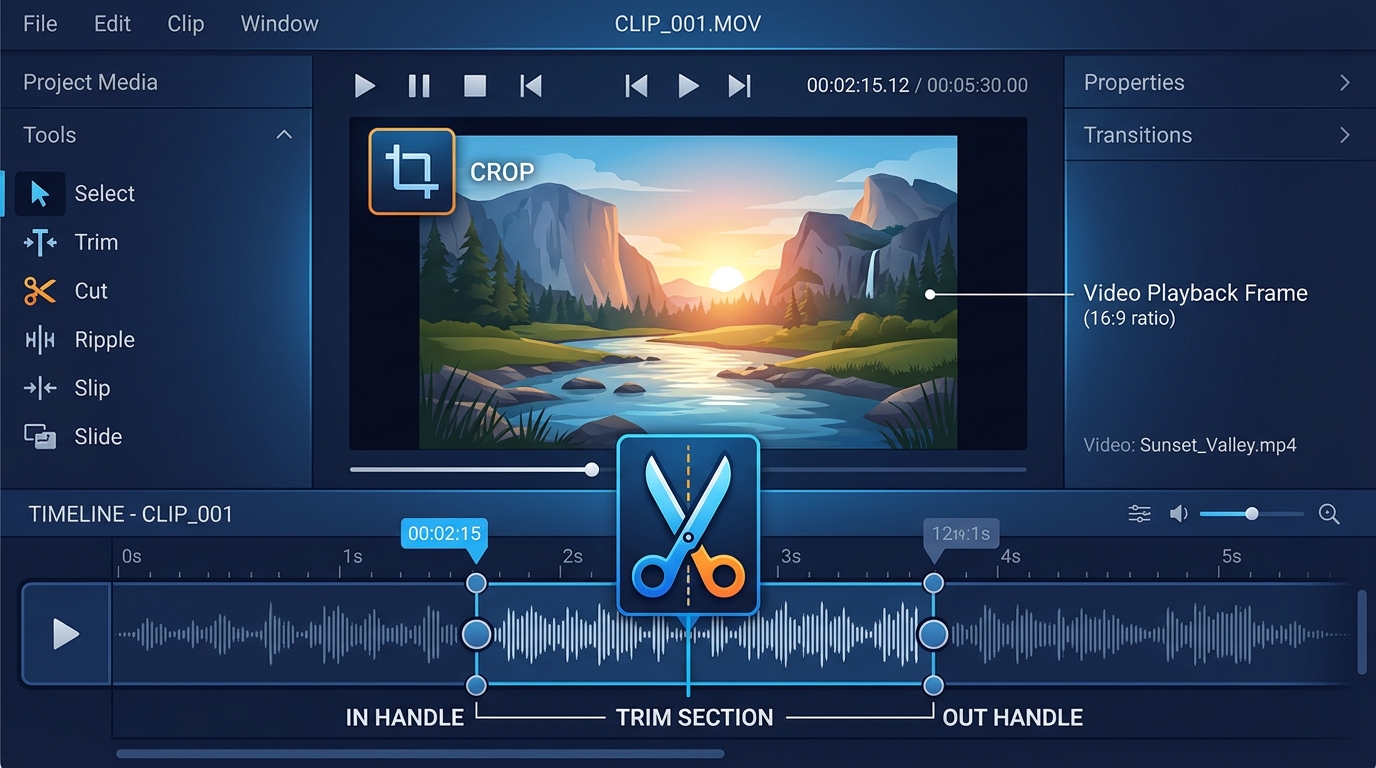
- Set In and Out Points: Drag the start and end sliders to the exact timestamps you wish to keep.
- Preview Selection: Play the selected region to verify that transitions and speech cuts are seamless.
- Export Trimmed File: Click "Trim Video" to download your finished clip in original MP4 quality.
After trimming several highlights, you can combine them into a single compilation using our video merger tool.
Frequently Asked Questions
Does trimming reduce video resolution?
No! The original resolution, frame rate, and bitrate are preserved entirely.